How-to videos

Learn ThotaTracker in 7 short videos.

Each video shows one part of the app on a real phone, with the steps written out underneath. Start with setup, then go straight to the part you need.

  1. 1 Setup
  2. 2 Harvest & pay slips
  3. 3 Offline weighing
  4. 4 General work
  5. 5 AI assistant
  6. 6 Drying to sales
  7. 7 Reports & sharing
Start here 2:59
Video 1

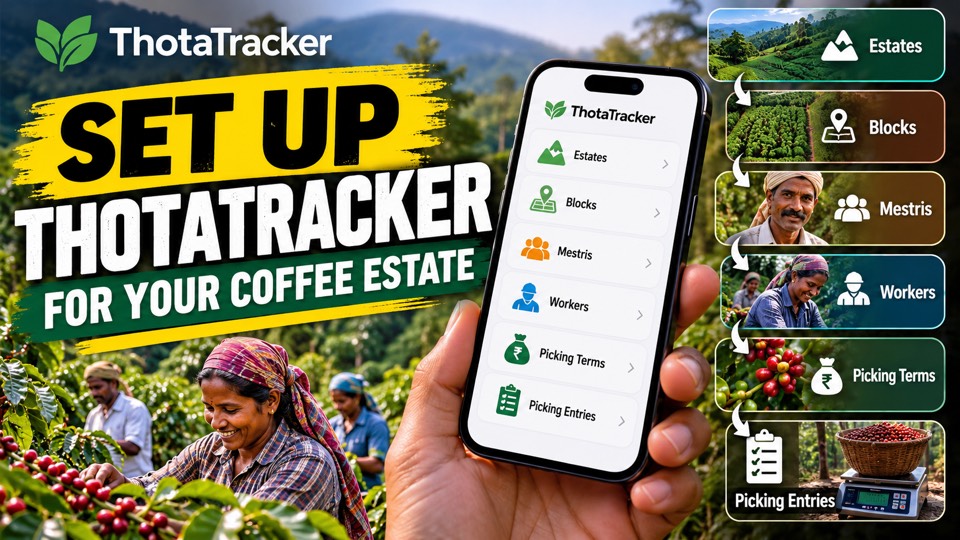
Set up your estate

Add your estates, mestris and picking terms once, so every day's entries already know where they belong.

  1. Tap Sign up on the login screen. Once we approve your account, you can log in.
  2. Add your estates first, then the bits inside each one. Every entry in the app belongs to an estate.
  3. Add your mestris and their workers (name, phone, notes). This is optional up front: you can also create a new worker right inside a data entry form.
  4. Save the picking day terms: estate, mestri, number of workers and rate per kg. Saved terms get a name and can be reused on other days.
  5. Select the day's picking entries and tap Apply details. A tick mark shows the entries that already have terms.
  6. Set the bit for one entry with its edit button, or for all selected entries at once with Update details.
3:29
Video 2

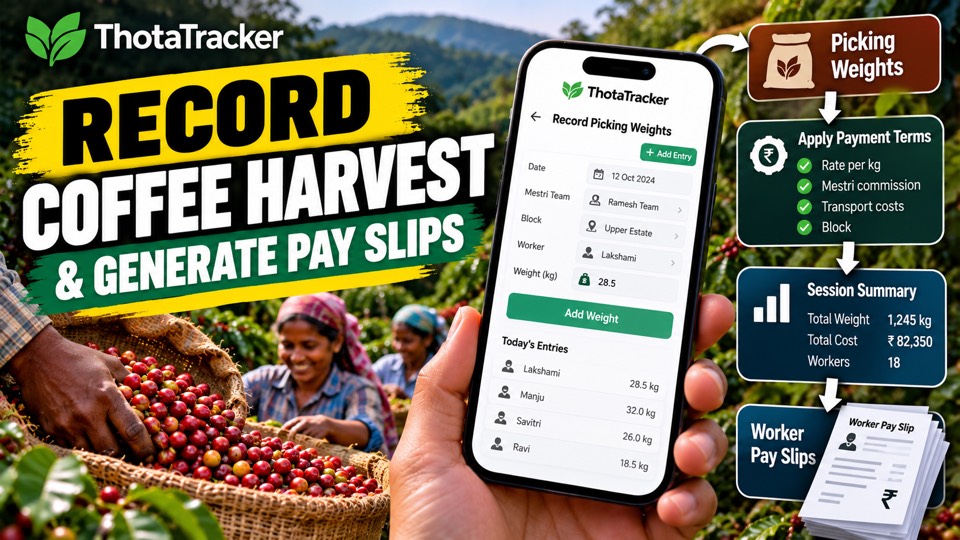
Record the harvest and make pay slips

Weigh each bag against the worker who picked it, then apply the pay terms to the whole session at once.

  1. Open Track Thota → Coffee picking. Choose the mestri, and only their workers show in the list.
  2. Enter each bag's weight. A running total shows as you go, and you can tap any line to correct it.
  3. Fill in the payment terms: rate per kg, mestri commission, transport cost and the bits picked. Or load terms you used before.
  4. Select the session you just weighed and tap Apply to session. Each worker gets their weight, rate and amount, and the day gets its picking cost, transport and grand total.
  5. Open Summary to see the whole season. Open a session to download a worker pay slip, then save it as a photo and share it. Transport is left off the slip unless you tick it.
3:50
Video 3

Weigh without signal, sync later

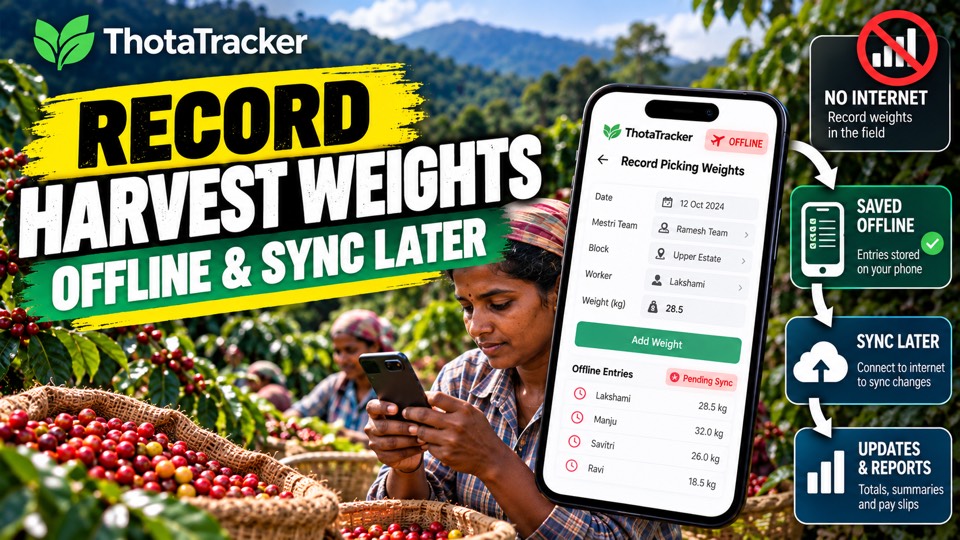
There's often no signal where the picking happens. Weigh anyway: entries wait on the phone and sync when you're back in range.

  1. Without internet, the app switches to offline mode after a few seconds. Weighing still works; the AI assistant needs internet.
  2. Record weights as usual. The entries stay saved even if you close the app.
  3. Totals and summaries leave out offline entries until they sync. Under Data, pending offline sync shows what's waiting.
  4. When the phone is back online, tap Sync now. The session then appears in the summary.
  5. Apply picking terms to the synced session like any other. Use the edit button to change or delete an entry.
  6. Pepper picking works the same way: weighing, daily operations and a season summary.
2:29
Video 4

Log general work and its cost

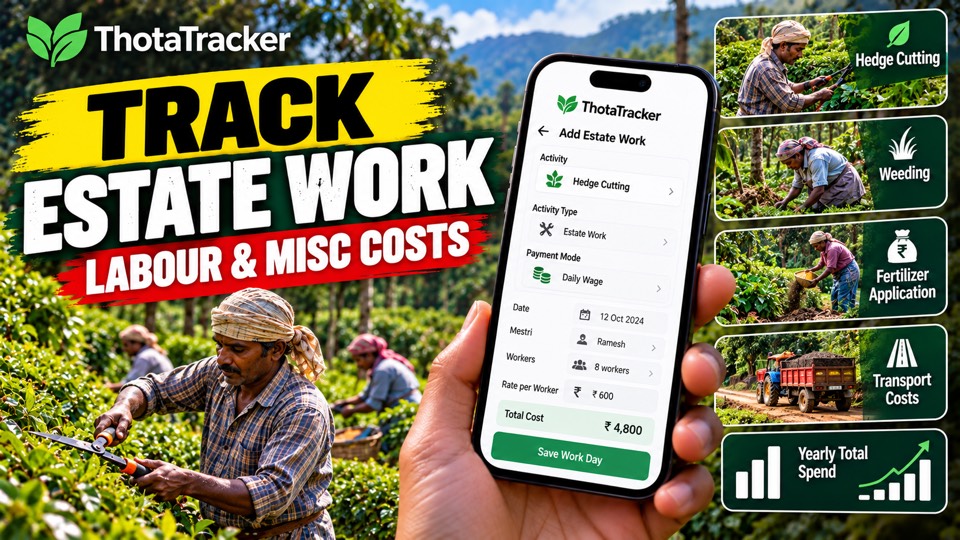
Weeding, pruning, hedge cutting: log the estate's routine work and see what it costs across the year.

  1. Go to General Work → Quick Entry and choose an activity type, or add your own.
  2. Choose how the work is paid: the full job, hourly (rate per hour and hours) or daily wages. Then create the activity.
  3. For daily-wage work, add a day: pick the mestri and workers, set the rate per worker and add any other costs. The day's cost works itself out.
  4. The Summary lists each activity's entries, and you can edit any of them.
  5. When the work is finished, edit it and mark it Completed. The summary also shows the year's total cost.
  6. You can also add work by talking to the AI assistant (video 5).
1:48
Video 5

Talk to the AI assistant

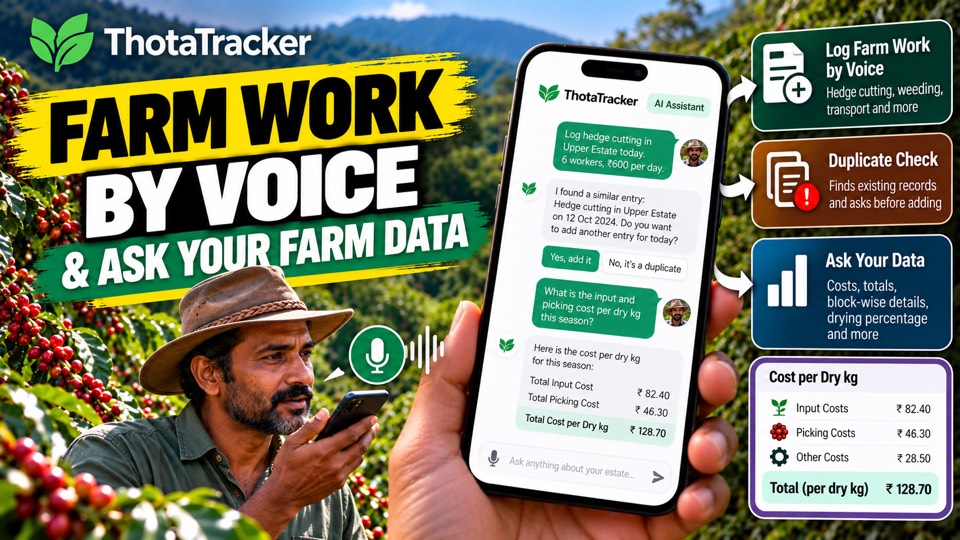
Say what was done to add it, or ask a question and get the answer from your own records.

  1. Tap the mic and say what was done, for example "fence hedge cutting, four people today". Your words are written out and sent, and you can stop it before it goes.
  2. It checks your records first. If that work already has an entry for the day, it asks whether to change it instead of adding a second one.
  3. Reply by tapping the red mic, or start a new question.
  4. Ask anything about your farm, such as cost per dry kg. It reads across all your records and shows each step while it works.
  5. Answers come broken down, for example input and picking cost per dry kg, by bit, with the drying percentage.
6:31
Video 6

From drying to sale

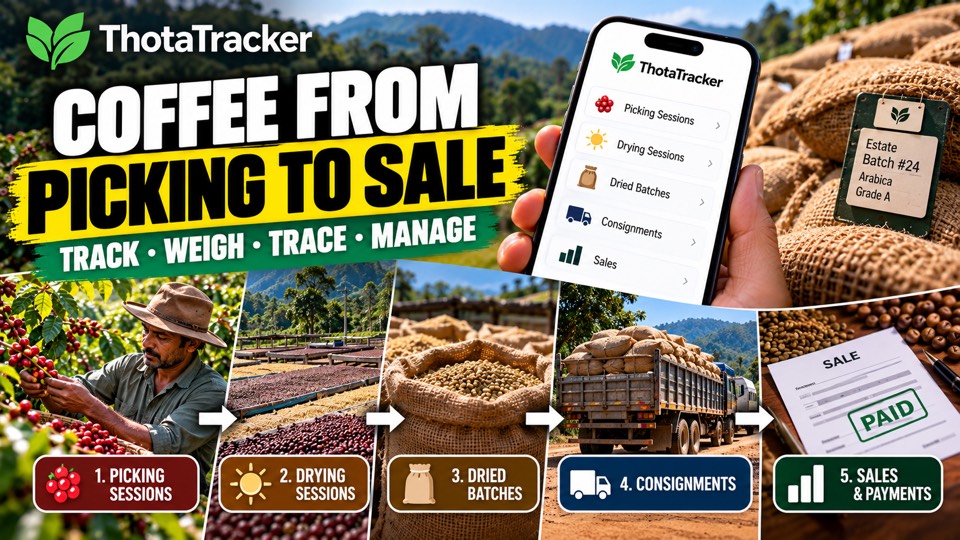
Follow your coffee from picking to dried batch, consignment and sale, with each step linked to the one before.

  1. After drying, weigh the dried bags under Drying, the same way as harvest weighing. Add any extra costs.
  2. In Inventory → Add batch, add the picking sessions and the drying session that went into the batch. Picking weight, dried weight and bag count fill in by themselves.
  3. From a dried batch, coffee can go to hulling and roasting, or, most often, straight to a consignment.
  4. Add a consignment entry for the batch, with outturn (from a 300 g sample), clean beans and moisture. You can also weigh the bags again at lorry loading to see any difference.
  5. Add a sale from the consignment and choose how many bags. It shows how many are left, and leaving it empty takes them all. Mark the sale paid when the money comes in.
4:20
Video 7

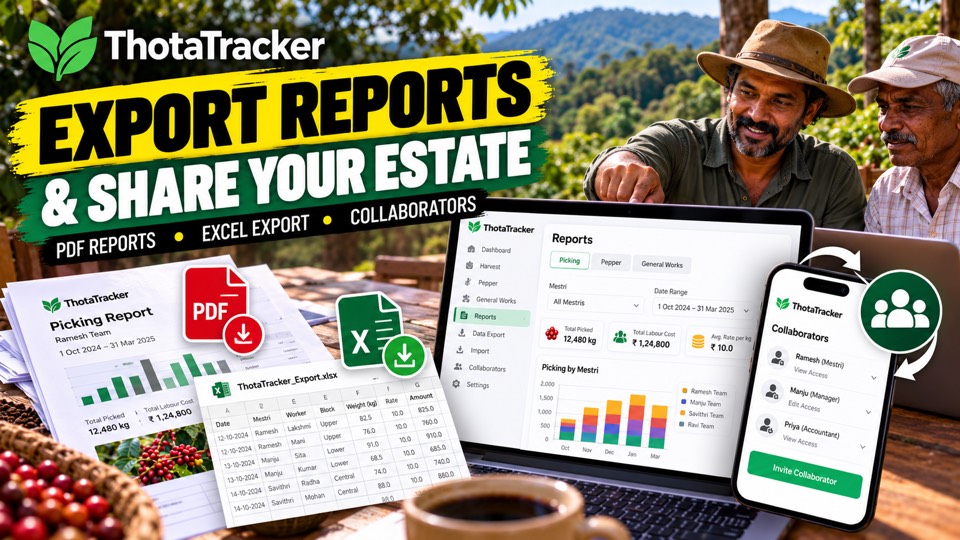
Reports, exports and your team

Get your records out as PDF and Excel, bring older records in, and give your team their own access.

  1. Reports has sections for coffee picking, pepper and general work, with charts you can break down by estate.
  2. Export to PDF: filter by mestri (to send a mestri their season), or choose what to include and a date range. Preview, generate, then share.
  3. Under Data, export everything to one Excel file, with a sheet for every table. Use the same format to import older records.
  4. The danger zone deletes all your data from the cloud. Export first, so you can import it back.
  5. Add collaborators, such as a manager or mestri, and choose which estates they can view or edit.
  6. In Talk to Us, ask the help assistant, or send us feedback, an idea or a voice note.

Stuck on something?

Ask the help assistant under Talk to Us in the app, or get in touch and we'll walk you through it.

Watch on YouTube